
Audiovisual Study Tool Help
Introduction
The AST allows you to listen to recordings of piano pieces while following along in the scores. It integrates Piano Street's sheet music library of over 3000 pieces with the leading video and music streaming services YouTube, Spotify and Naxos.
This help section is intended to guide you through using the Audiovisual Study tool in a step-by-step manner.
Using the AST in desktop mode or mobile mode
The AST is designed to work seamlessly across devices. Depending on the size of your screen, the AST will automatically switch to either desktop mode or mobile mode.
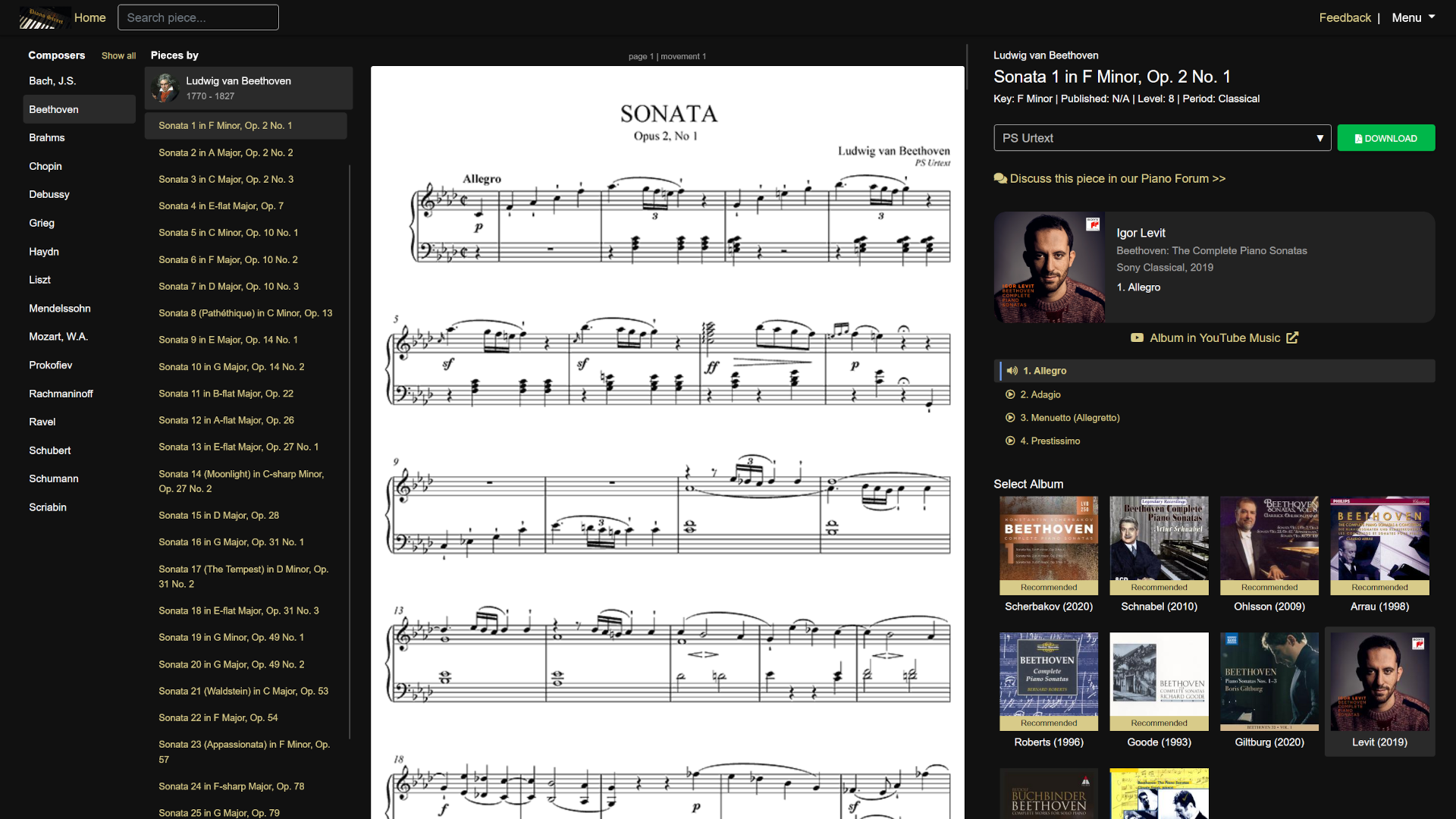

- Desktop mode: The AST will be displayed in a multi-column layout suitable for larger screens.
- Mobile mode: The AST will be displayed in a single-column layout with a bottom tab navigator optimized for touch interactions.
The instructions in this guide will cover both desktop and mobile modes.
The Start Screen
The Start Screen is intended to ease you into using the AST. It displays a grid of all the composers available in the Piano Street Sheet Music Library.


To filter among the available composers, type a name in the "Filter composers" search bar above the composer grid. To remove the filter and see all available composers again, simply erase what you have written in the search bar.
Clicking or tapping a composer loads the Main Screen with the sheet music and recordings of one of the composer's pieces, preselected by the Piano Street team.
The Main Screen
The Main Screen is where you will spend most of your time using the AST. It displays the sheet music of the selected piece, alongside the ability to view and download different editions, selecting and listening to different recordings, and more!
The Main Screen has five main areas:
- Top Bar: Located at the top of the screen in both Desktop and Mobile mode. The "Home" link takes you back to the main Piano Street website. The search bar allows you to search for any piece, collection or composer available in the Audiovisual Study Tool. The menu button to the right gives access to the Start Screen, Settings Panel, and Help Screen.
- Piece Selection Menu: Located on the left side of the screen in Desktop mode, and accessible via the "Pieces" tab in the bottom tab menu in Mobile mode. This menu allows you to select a piece to view and listen to. (See Piece Selection Menu for more information.)
- Score Display Area: Located in the center of the screen, this area displays the sheet music of the selected piece. (See Navigating the Score for more information.)
- Score Info: Located at the top of the right sidebar in Desktop mode, and accessible via the "Score" tab in the bottom tab menu in Mobile mode. This area displays information about the currently selected piece, including its composer, title, and available editions. (See Selecting an edition and Downloading a PDF for more information.)
- Recording Player: Located in the right sidebar below the Score Info area in Desktop mode, and accessible via the "Player" tab in the bottom tab menu in Mobile mode. This area contains the Recording Player, which allows you to play recordings of the selected piece, view track information, and control playback (See Listening to recordings for more information.). It also allows you to navigate between movements or sections if the piece has multiple movements or sections added by the Piano Street team. (See Movement Navigator and Playing a recording of a specific movement or section for more information.)
- Select Recording: Located in the right sidebar below the Recording Player area in Desktop mode, and accessible via the "Recordings" tab in the bottom tab menu in Mobile mode. This area displays available recordings for the selected piece. Click or tap on an album cover to select and play the recording featured on that album. (See Selecting a recording for more information.)
- Settings Panel: Accessible via the "Menu" button in the top-right corner of the screen in both Desktop and Mobile mode, or the "Settings" tab in the bottom tab menu in Mobile mode. Allows you to change various settings in the AST, including your preferred streaming service. (See Changing settings for more information.)
The Help Screen
The Help Screen is the screen featuring the guide you are currently viewing. It may be accessed at any time by:
- Desktop mode: Click on the "Menu" button in the top-right corner of the screen, then click on "Help" in the dropdown menu.
- Mobile mode: Tap on the menu button in the top-right corner of the screen, then tap on "Help" in the dropdown menu.
Selecting a piece
It is possible to select a new piece to view and listen to in the Main Screen in the following ways:
- Desktop mode: Use the Piece Selection Menu displayed on the left side of the screen. (See Piece Selection Menu below for more information.)
- Mobile mode: Tap the "Pieces" tab in the tab menu on the bottom of the screen to open the Piece Selection Menu.
- Both modes: Use the search bar at the top of the screen to search for composers, collections, and piece names. (See Search bar below for more information.)
Piece Selection Menu

The Piece Selection Menu has two columns, the Composers column and the Pieces column. Click or tap on a piece name in the Pieces column to load that piece's sheet music and recordings (see The Pieces Column below for more details.)
The Composers Column
The leftmost column shows a list of available composers. The composer of the currently selected piece will be highlighted. Click or tap on a composer in this column to see a list of their pieces in the Pieces column.
By default, only the most popular composers are shown, unless a piece by a less popular composer has been selected. To show all composers, click on the "Show all" button. To only show the most popular composers, click "Show top".
The Pieces Column
The second column shows available pieces composed by the currently selected composer. The pieces are often grouped into collections such as Sonatas, Waltzes, etc. The collection containing the currently selected piece will be expanded to show its pieces, with the currently selected piece highlighted.
To select a new piece to display its sheet music and listen to its recordings, click on the piece's name.
To browse a different collection, click on its name to expand a list of pieces. To close the list, click on the collection name again.
Search bar

The search bar, located in the top bar, allows you to freely search for composers, collections and piece names. Type in the search bar to see a list of matching composers, collections and pieces. Clicking or tapping on a result will cause different actions depending on the type of result:
- Composer: The composer will be selected in the Piece Selection Menu's composers column, and the pieces column will show that composer's collections and pieces.
- Collection: The composer will be selected in the Piece Selection Menu's composers column, and the pieces column will show their collections and pieces, with the selected collection opened and ready to browse.
- Piece: The AST will immediately load the sheet music and recordings for the chosen piece. The piece's composer will be selected in the Piece Selection Menu's composers column, and the pieces column will show their collections and pieces, with the selected collection opened and the chosen piece selected.
Navigating the Score
To navigate the score, do any of the following:
- Desktop mode: Scroll up or down using the mouse wheel (or swipe up or down with your finger if in Desktop mode on a touchscreen device).
- Mobile mode: Scroll up or down by swiping up or down on the score using your finger (or use the scroll wheel if in Mobile mode on a desktop device),
- Both modes: Use the Movement Navigator (See Movement Navigator below for more information.)
Movement Navigator

The Movement navigator appears as a list of movement or section names. It is only visible if a piece has multiple movements or other type of sections added by the Piano Street team, such as Variations.
The Movement Navigator may be accessed the following ways:
- Desktop mode: The Movement Navigator is displayed on the right side of the screen, below the Recording Player and above the "Select Recording" section.
- Mobile mode: The Movement Navigator is accessible in both the "Score" tab and the "Player" tab in the bottom tab menu.
Click or tap on a movement or section name to immediately scroll the score to the beginning of that movement or section. Selecting a movement will also start playing a recording of that movement. (See Playing a recording of a specific movement or section for more information.)

If the movement navigator is used in the "Score" tab in Mobile mode, it will not affect playback, but only navigate the score.
A small blue marker is displayed next to the movement or section name of the currently visible movement in the score. If you scroll the score manually with your scroll wheel or finger, the blue marker will update to reflect the currently visible movement.
Selecting an edition
Some pieces have multiple editions available, such as PS Urtext, PS Edition, Instructive Editions, high quality scans, and even autograph manuscripts.
To select which edition to display:

- Desktop mode: Look for the Edition selector, which displays the name of the current edition, below the piece's name, composer and other details at the top of the right sidebar. If multiple editions are available, you will be able to click on it to bring up a menu where you can select the edition you want to display.
- Mobile mode: The Edition selector is accessible in the "Score" tab in the bottom tab menu. If multiple editions are available, you will be able to click on it to bring up a menu where you can select the edition you want to display.
The score view will immediately load the new edition once selected.
Downloading a PDF
To download a PDF of the currently displayed edition, click on the green "Download" button next to the Edition selector (see Selecting an edition above).
Changing score size on desktop devices
See Changing score size on desktop devices under the Changing settings section.
Listening to recordings
Playing a recording
The vast majority of pieces have had at least one recording added by the Piano Street team. Whenever a piece is selected (see Selecting a piece) and it has at least one recording available, one of its recordings will be automatically selected and ready to play in the Recording Player. (To select a different recording, see Selecting a recording below.)

The Recording Player may be accessed the following ways:
- Desktop mode: The Recording Player is located in the right sidebar, below the Edition selector.
- Mobile mode: Tap the "Player" tab in the bottom tab menu to open the Recording Player.
The look of the recording player will depend on the streaming service, which may be either Youtube, Spotify, Naxos Music Library (see Selecting Streaming service under the Changing settings section for information on selecting a service), or the Piano Street Recording Player for recordings produced by the Piano Street team.
- YouTube: The album cover is also a YouTube video player. Click or tap the big red "play" button to start the recording. Click on the album cover to pause.
- Spotify: Use the player controls in the embedded Spotify player. You must be logged in to your Spotify account in the web browser to use the Spotify player, otherwise you will only be able to hear a short preview of the track. Certain mobile devices and/or browsers may not support logging in to use the embedded Spotify player. In these cases, the track must be opened in the Spotify app by using the "Album on Spotify" link below the player.
- Naxos Music Library: The Naxos Player is displayed as a small white bar below the album cover and information. Use the player controls to play or pause the recording.
- Piano Street Recording Player: Piano Street's recording player displays a picture labeled "Recording by pianostreet.com" and one individual mp3 player for each available track.
If the currently selected piece has no recordings available through YouTube or Spotify, the Audovisual Study Tool will temporarily switch to the Naxos Music Library, until a piece with recordings available in your preferred streaming service is selected.
Playing a recording of a specific movement or section
If the currently selected piece has multiple movements or sections added by the Piano Street team, a Movement Navigator will be displayed below the Recording Player. Click or tap a movement or section in the navigator to start listening from the beginning of that movement or section. A loudspeaker icon will be displayed next to the currently selected movement or section recording in the Movement Navigator.

Depending on the specific recording and streaming service, either a new track will be selected and automatically start playing, or the existing track will be fast forwarded or rewinded to reflect your selection. The score will also automatically scroll to the beginning of the selected movement or section. (See Movement Navigator in Navigating the Score for more information).
When the Piano Street Recording Player is active, the Movement Navigator will only control the score view, but not affect playback. Movements are instead started and paused using the individual mp3 players for each track, which are displayed in the Piano Street Recording Player.
Selecting a recording

A recording may be selected by clicking or tapping on a recording cover in the "Select Recording" section, which may accessed the following ways:
- Desktop mode: The Select Recording section is located in the right sidebar, below the Recording Player (and Movement Navigator, if displayed).
- Mobile mode: Tap the "Recordings" tab in the bottom tab menu to display the "Select Recording" section.
If the recording list is too long to fit on the screen, you may scroll with your mousewheel or swipe with your finger to see more recordings.
Changing settings

The settings panel allows you to configure various aspects of the Audovisual Study Tool, including your preferred streaming service, with more options planned in future updates.
Opening the settings panel
The settings panel may be accessed the following ways:
- Desktop mode: Click on the "Menu" button in the top-right corner of the screen to open a dropdown menu, then click on "Settings", this will open the settings panel in a modal on top of the current screen.
- Mobile mode: Tap the "Settings" tab in the bottom tab menu, or tap on the hamburger menu button in the top-right corner of the screen to open a dropdown menu, then tap on "Settings".
Saving or cancelling changes to your settings
You must press the green "Save" button for your settings to take effect. If you do not want to save your changes, you can simply close the settings panel the following ways:
- Desktop mode: Click on the "Cancel" button at the bottom of the settings panel.
- Mobile mode: Tap the "Close" button at the top of the settings panel.
Selecting Streaming service
Use the Streaming service for recordings dropdown menu to select your preferred streaming service. You may select either YouTube, Spotify or Naxos Music Library. Please note that the Spotify service requires an active Spotify subscription to use, and that different services may have different recordings available for the same piece. If a piece has no recordings available via YouTube or Spotify, but does have pieces available via Naxos Music Library, the Audovisual Study Tool will automatically switch to Naxos Music Library while that piece is selected.
Piano Street recordings will be displayed in the "Select Recording" section regardless of what service is selected.
Changing score size on desktop devices
On large desktop screens (1400 pixels or wider) the AST may make additional or reduced room for the score display area, depending on your preference. The score is available in three sizes, Small, Medium (default), and Large.